Connect Mobile Device
Command description
Connect a mobile device before running mobile automation commands.
- In the phone's System Settings, enable Developer Options and USB debugging. Some phones also require USB debugging (Security settings) > Allow simulated clicks. This setup normally needs to be completed only once.
- Connect the mobile device to the computer with a USB cable.
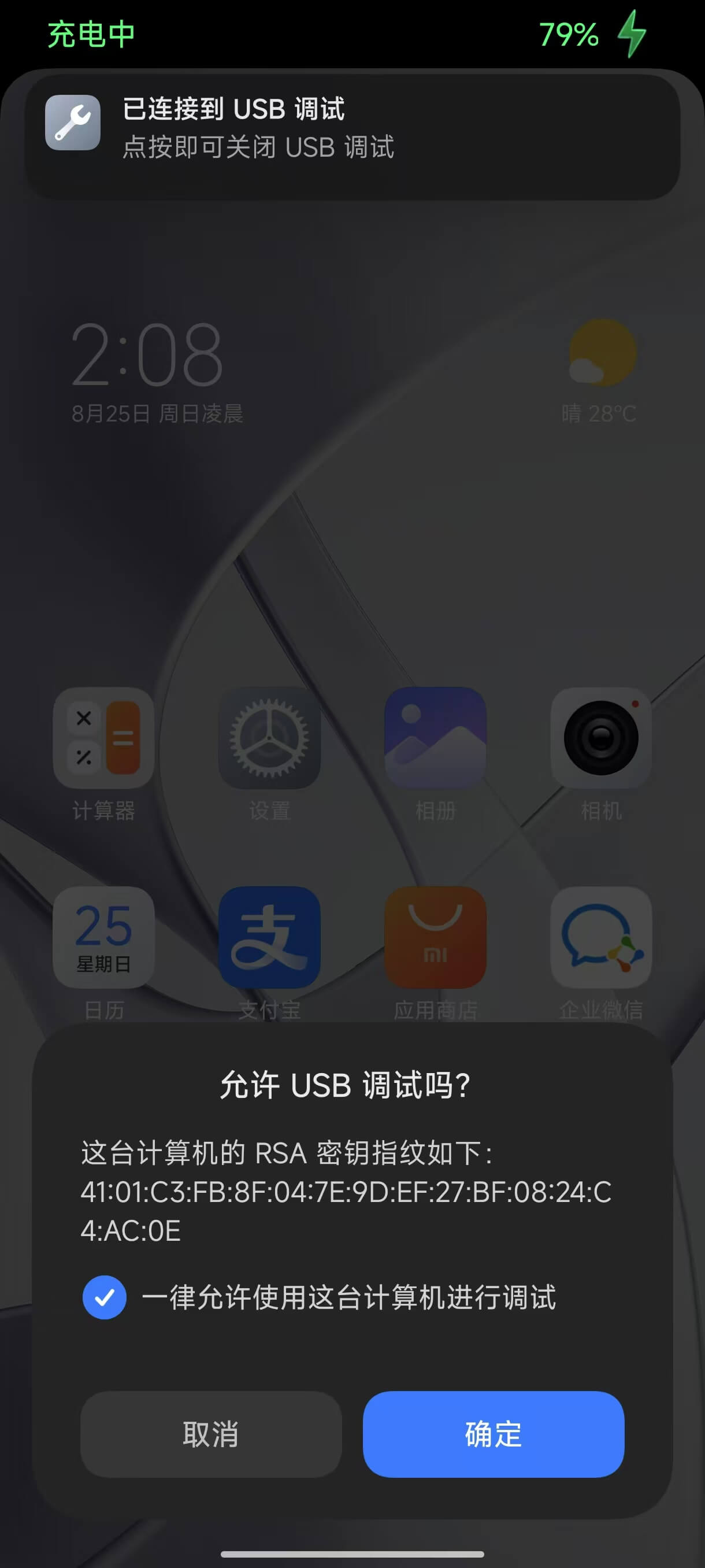
- When the device asks whether to allow USB debugging, select Allow. If no prompt appears, run Connect Mobile Device, then disconnect and reconnect the cable.
Command Input Parameters
| input parameters | Input parameter type | Description |
|---|---|---|
| Connection Method | enum | Single Phone, All Phones; pass the returned object to subsequent mobile automation commands |
Command Output Parameters
| Output parameters | Output parameter type | Description |
|---|---|---|
| Mobile Device Object | Phone or list[Phone] | Phone when Connection Method is Single Phone; list[Phone] when it is All Phones. This object is required by subsequent mobile automation commands. |
Type definition reference
tip
Example
Enable developer options on a Xiaomi device: