Download Examples
Choose a browser, start a download, query its status, and obtain the downloaded file's local path. You can choose the file name; if the path already exists, the name is adjusted automatically. BitBrowser and AdsPower multi-window downloads are supported.
- Download and import get-download-file-path.qya (right-click and select Save link as) to view the sample workflow.
Example
Download files using the specified BitBrowser/AdsPower window
- Click Extension - Runavelo in the upper right corner of the BitBrowser/AdsPower window to see the envId of the window. The envId is automatically created by Runavelo. Each BitBrowser/AdsPower window has a unique envId. Uninstalling and reinstalling the Runavelo extension will cause the envId to change.
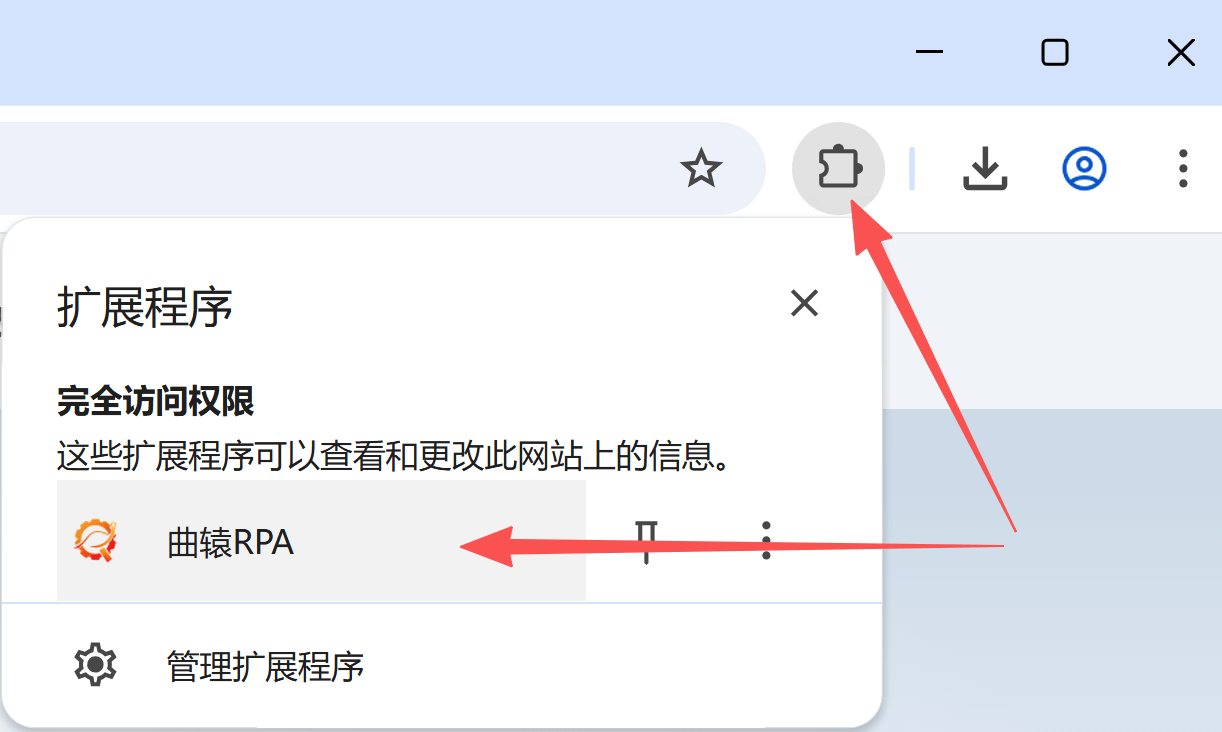
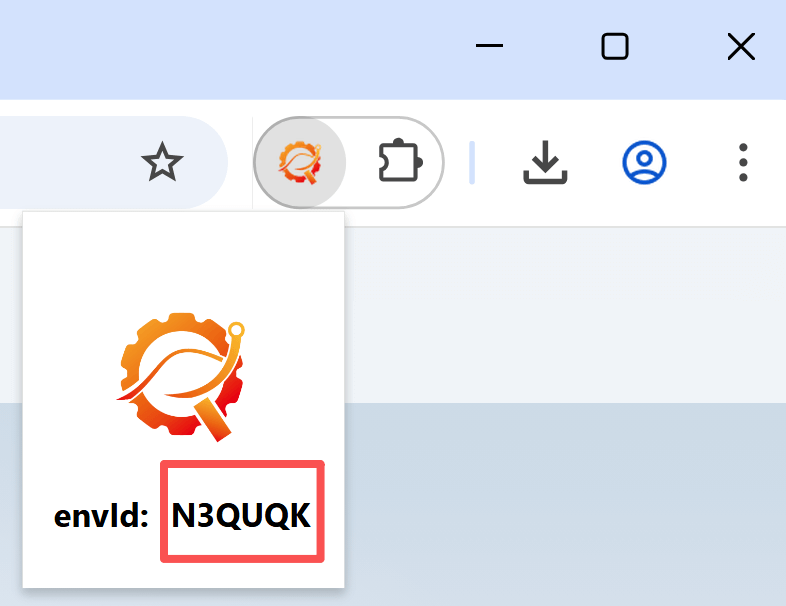
-
For example, after download monitoring starts in the N3QUQK window, downloads initiated either from that webpage or with Download File in Browser can be tracked to obtain their status and full local file path.
-
Use the monitoring task ID to obtain download task IDs created since monitoring began in the N3QUQK window.
-
Wait for the specified download task to succeed or fail. If timeout
ais greater than the actual download durationb, Wait for Browser Download returns afterbseconds; otherwise, it times out afteraseconds. -
Get the local path with Get Downloaded File Path.
-
Use Check Download Status to test for Downloading, Download Succeeded, or Download Failed.
Logs and download records
- Runavelo browser extension 2.0.0 or later
- A download task ID is available only after the task appears in the browser's download history. Some webpages may not create the task immediately after a download starts. Use Pause before Get Download Task ID when necessary.