Download File in Browser
Command description
Download a URL through the selected browser and optionally choose the local file name. If the path already exists, the name is adjusted automatically. BitBrowser and AdsPower multi-window downloads are supported. Use the returned task ID with Check Download Status, Wait for Browser Download, or Get Downloaded File Path.
Command Input Parameters
| input parameters | Input parameter type | Description |
|---|---|---|
| Browser Type | enum | Google Chrome, Edge, QQ Browser, BitBrowser, AdsPower |
| envId | str | This parameter is only required when the browser type is BitBrowser or AdsPower, and is used to download files in the specified fingerprint browser window. |
| Download URL | str | |
| File Name Option | enum | Auto Detect, Custom File Name |
| Custom File Name | str | Required only when File Name Option is Custom File Name |
Command Output Parameters
| Output parameters | Output parameter type | Description |
|---|---|---|
| Download Task ID | int |
tip
- Runavelo browser extension 2.0.0 or later
- Download and import get-download-file-path.qya (right-click and select Save link as) to view the sample workflow.
Example
Download files using the specified BitBrowser/AdsPower window
- Click Extension - Runavelo in the upper right corner of the BitBrowser/AdsPower window to see the envId of the window. The envId is automatically created by Runavelo. Each BitBrowser/AdsPower window has a unique envId. Uninstalling and reinstalling the Runavelo extension will cause the envId to change.
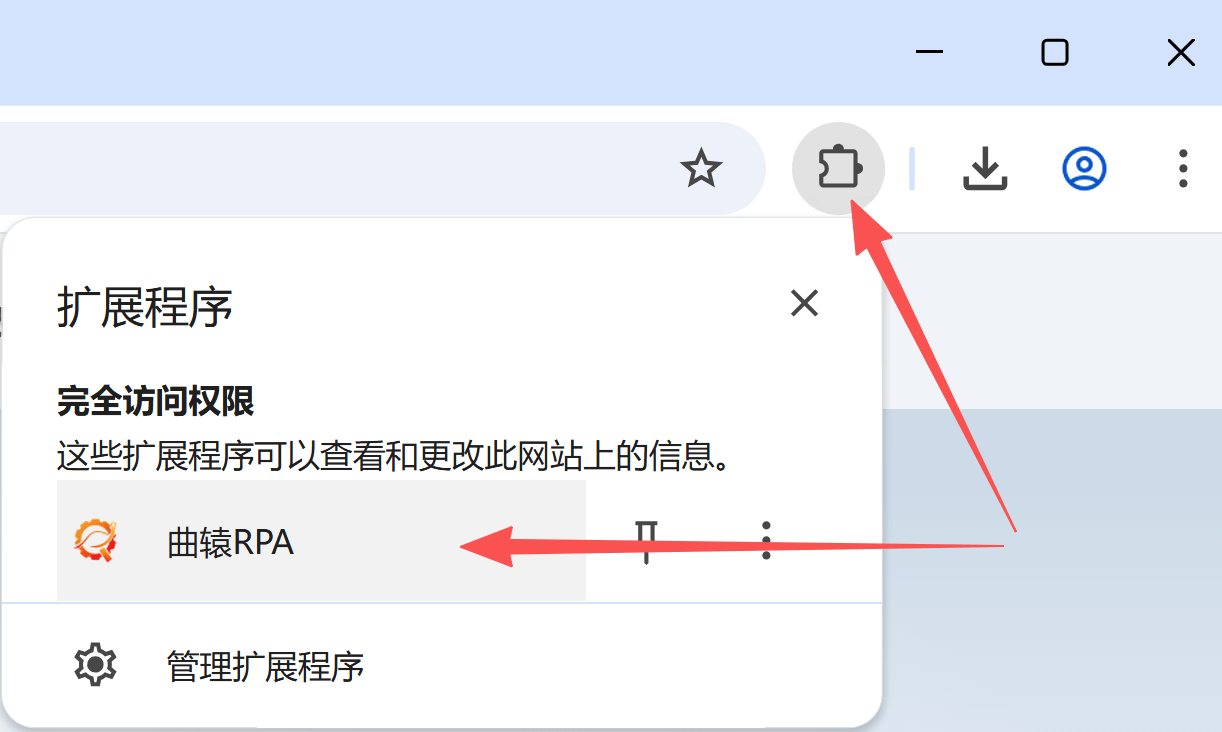
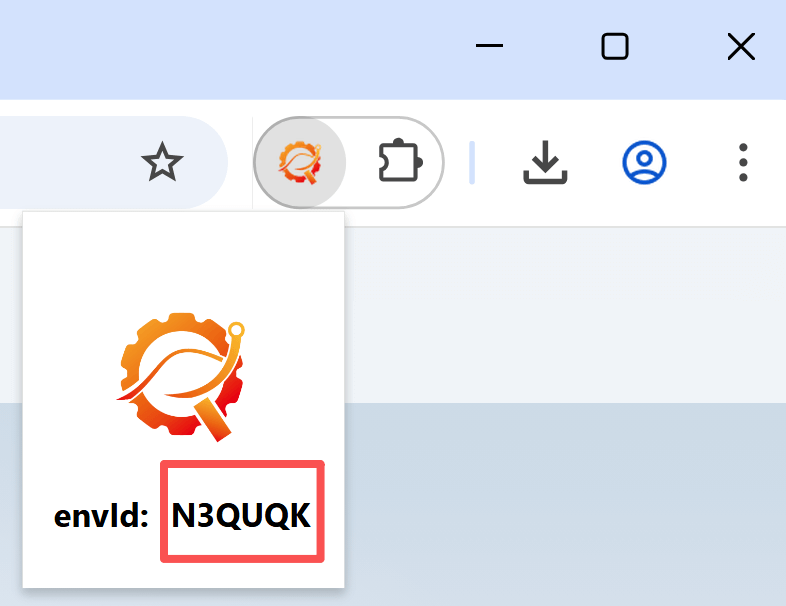
- Use Download File in Browser to start the download. You can choose the local file name; if it already exists, the name is adjusted automatically.
- Wait for the specified download task to succeed or fail. If timeout
ais greater than the actual download durationb, Wait for Browser Download returns afterbseconds; otherwise, it times out afteraseconds. - Get the local path with Get Downloaded File Path.
- Use Check Download Status to test for Downloading, Download Succeeded, or Download Failed.